Understanding Value Entry
Flexible Value Input for Precision Drafting
Patternmaker Pro is designed with your drafting workflow in mind, understanding that precise value entry is crucial and the need for external calculators can be cumbersome. Our input boxes offer a range of flexible options to ensure you can enter values exactly how you need them.
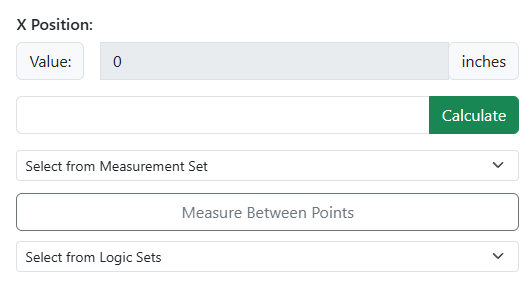
When a tool requires a numeric input, you'll see an input box followed by the unit of the value, as shown below. For instance, the example indicates the value should be entered in inches.

Memorization
Dynamic formulas are crucial for custom sizing through memorization.
Simple Values and Basic Arithmetic
Your most straightforward option is to enter a simple numeric value, such as "5". If you want the value to be negative, enter the "-" (minus) sign in front of it. Beyond single numbers, you can also perform basic arithmetic directly within the box using simple equations like "4 + 2".

After entering a value or equation, you will typically need to select the Preview button to visualize the changes in your workspace. The program will automatically calculate the result, and the input box will then display this calculated value.

Dynamic Formulas and Measuring Between Points
Never copy and paste formulas into the formula box. Always select the points to measure and/or the measurements from the set drop-down list.
There are instances where a value needs to be dynamically dependent on existing geometry in your draft. For these situations, select the Add Formula button to access advanced input options.
Upon clicking Add Formula, a new button titled Measure Between Points will become available. This powerful tool allows you to select points directly in your workspace and measure the distance between them.

Selecting Measure Between Points will activate the tool, making all points in your workspace available for selection. Click on points in the desired order to measure between them; selected points will turn an aqua color. Clicking a selected point again will deselect it. You can select two or more points to define your measurement path. Once your point selection is complete, click Point Selection Done.

The formula box will now populate with the unique IDs of the points you've selected, along with helpful helper text displaying the assigned names of those points.

Finally, select the Calculate button, and the measured value will be computed and entered directly into the input box.

Seamless Integration with Measurement Sets
If you have a measurement set loaded (Measurements > Load Set for Active Draft), you gain an additional, highly convenient option. When you select the Add Formula button, you'll also see a dropdown titled Select from Measurement Set. This dropdown provides immediate access to all your defined measurements, eliminating the need to look up values elsewhere.

If you select a wrong measurement and click Calculate, the system will add it to the pattern's requirements. Even if you remove it from the formula and select the correct one, the incorrect measurement will still be required when the pattern is recalled. To avoid this, cancel the tool if you mistakenly calculate with an incorrect measurement.
You are free to switch to different measurement sets as needed when drafting. The values are not saved on recall, just the names.
Integrating Pattern Logic Sets
You can also build conditional logic sets in your draft. These sets are then available as a formula option. This is an advanced feature for those drafters experienced with the program. You can find out more about this by visiting Pattern Logic Sets in the manual.
Composite Formulas
The formula box is capable of handling highly complex expressions. You can combine measurements between points, values from your measurement set, and standard mathematical functions, as demonstrated in this example:
[point_zXh7,point_t0bB] - (({Waist Front} / 2) + ({Waist Ease} / 4))
This type of equation is more common than you might think in pattern drafting. The example above, derived from the "Fitted Bodice Front" instructions provided within the program, calculates dart intake. It measures the distance from the Center Waist to the Side Waist in the draft and then subtracts half of the total Waist Front measurement plus a quarter of the total Waist Circumference Ease.
This is one of those powerful features whose true value becomes evident when you truly need it. Don't let its advanced capabilities deter you; you can always opt for simple direct value entry. However, exploring its potential can significantly streamline your drafting process.
As your formulas become more complex, always make sure to incorporate parentheses to explicitly define the order of operations.