Quick Start
Main Menu & Toolbar
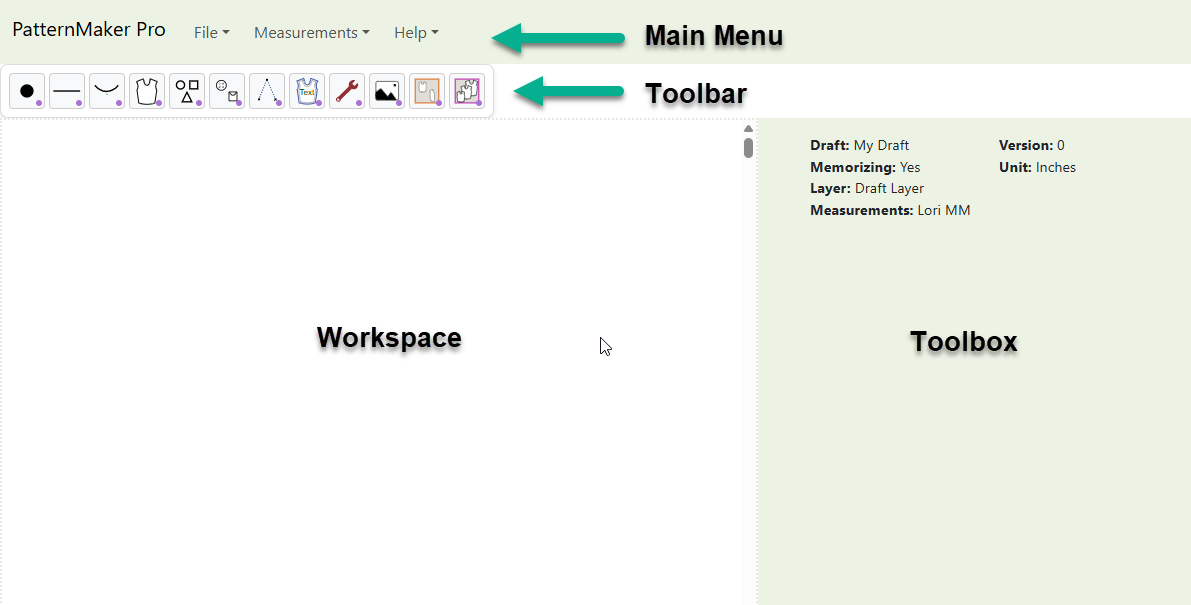
Patternmaker Pro is designed with four main interface components to help you draft your patterns: the Main Menu, Toolbar, Workspace, and Toolbox. At the very top, you'll find the Main Menu. Options on these menus may be grayed out and unavailable until a draft is active.
Just below the Main Menu is the Toolbar, which contains all the drafting tools sorted by category for easy access. Buttons with a small purple circle in the lower right corner open to reveal more options. For example, all the point tools are grouped under the Point category. Click a category button to see all the available tools.
Only open one instance of PatternMaker Pro at a time. Working in multiple windows can permanently corrupt your data.
Workspace & Toolbox
The Workspace is the main canvas where you'll do your drafting. You can pan the workspace by clicking and holding the left mouse button, and you can zoom by scrolling with your mouse.
Keep in mind that the workspace has a defined area, and you must keep all your components within it. You can see this area by selecting Properties > Show Workspace Canvas.
The Toolbox is the shaded area to the right of the workspace. At the top, you'll see key properties of your active draft, including the name, version, memorization status, units, selected layer, and any active measurement set.
When you select a tool from the toolbar, the Toolbox will open its specific interface. The tool's name is a link that, when clicked, will take you to the corresponding page in the online manual. Help is always just a click away!
Below the title, you'll find instructions for using the tool. Each time you complete a task and select Save, the draft's version number will increase. This means the system saves a copy of your draft's state, giving you infinite undo history back to the very beginning. You can also use File > Copy Draft to save your draft at various stages, preserving its full history.
The Toolbox is completely resizable. Just place your mouse cursor on the shared edge between the workspace and the toolbox, and the cursor will change to a double line with arrows. Click and drag left or right to resize it.
Getting Started
Installing Patternmaker Pro is a simple, one-time process. Once installed, it will appear on your computer just like any other app.
The first step is to create a new draft by selecting File > New Draft. The best way to learn the program is to follow one of the Patternmaker Pro tutorials. You can follow the instructions in the manual to download them. These tutorials will walk you through a complete draft and help you get familiar with all the tools.